Traeger Grills shutting off mid-cook is commonly caused by power issues, outdated app or firmware, or wiring problems. We should check power connections, update the Traeger app and grill firmware, and inspect hardware like the power brick and controller. If problems persist, contact Traeger Customer Support for assistance. Different troubleshooting steps apply for D2 WiFIRE, Touchscreen WiFIRE, and Woodridge Series grills.
Symptoms
- Your grill shuts off without you initiating the shutdown cycle, unplugging the grill, or losing power.
- Some users may refer to this as, "sleep mode," but the grill actually powers off.
- Most common on grills paired with an Android device running an old version of the Traeger app
Causes
A grill shutting off in the middle of a cook is most often caused by one of the following:
- Power outage or tripped outlet/breaker
- Traeger app is on a previous version
- Grill firmware on a previous version
- Grill wiring disconnected or damaged
What to Do
- Check if the power went out, if the outlet or your breaker tripped, or if the grill became unplugged. The power needs to be fully inserted in the grill.
- Grill should be connected to an outlet on a 15A or 20A breaker. Breakers with different amperage can allow for grill to shut off mid-cook.
- If possible, test a different outlet on a different circuit.
- Make sure your Traeger app is on the latest version.
- Check your grill's firmware to make sure it's on the latest version.
- If the grill shut off mid-cook while on the latest app version, please contact Traeger's Customer Support so we can continue gathering additional instances of this issue.
- To continue grilling without the grill shutting off in the middle of your cook, opt to control your grill using the grill's controller instead of the Traeger app.
Follow the directions below for the type of grill you are working with:
D2 WiFIRE Grills
Step 1: Check the Power Sources (Outlet and the Power Cord)
The most common reason a grill powers off mid-cook is because the power cord is loose, or the outlet or breaker tripped.
- Check the connections to the grill and make sure the power cord is securely connected underneath the grill and into the outlet.
- If using an extension cord make sure it has a ground pin and meets the qualifications outlined under use of extension cords.
Step 2: If the controller display won't turn on:
Continue to follow steps for the controller display not turning on
Step 3: If the controller turns on:
Check the Power Brick and Power Switch:
- Plug in and turn on the grill.
- Check the Power brick (where the power cord connects to the grill) and power switch for power
- The power brick Green LED light should be on and the power switch should light up.
- Brick ON; Switch On - A new Power Switch is needed, contact Traeger's Customer Support
- Brick OFF; Switch ON - contact Traeger's Customer Support
- Brick ON; Switch OFF - contact Traeger's Customer Support
- Brick OFF; Switch OFF - contact Traeger's Customer Support
Touchscreen WiFIRE Grills
Step 1: Check the Power Sources
The most common reason a grill powers off mid-cook is because the power cord is loose, or the outlet or breaker tripped.
- Make sure the power cord is fully plugged into the power strip on the back of the grill (not plugged into the induction cooktop cord) and into a working outlet.
- Make sure the outlet is working by plugging another device into the outlet to see if that device works.
- If a GFCI outlet, make sure it didn't trip.
- If no power, check the breaker.
- If using an extension cord make sure it has a ground pin and meets the qualifications outlined under use of extension cords.
Step 2: If the controller display won't turn on:
Continue to follow steps for the controller display not turning on Display not Turning On - Touchscreen Grills.
Step 3: If the controller display turns on:
Check the power button.
- Plug in and turn on the grill.
- Power button lights up - Check the connections for Induction cooktop.
- Power button does not light up - Check the Display Smart Combustion Harness connection
Step 4: remove the hopper access panel.
Important: Before removing the hopper service panel, check your grill’s manufacturer date.
June 2023 (2306) or after:
- Proceed to remove service panel.
Before June 2023 (2305):
- Removing the service panel on grills manufactured before June 2023 should be done using a manual impact driver to prevent the possibility of stripped screws. If you do not have an impact driver on hand, please contact Traeger Customer Support.
Step 5:  Find the backside of the Power Strip and check that the connections for the Induction Cooktop are placed correctly.
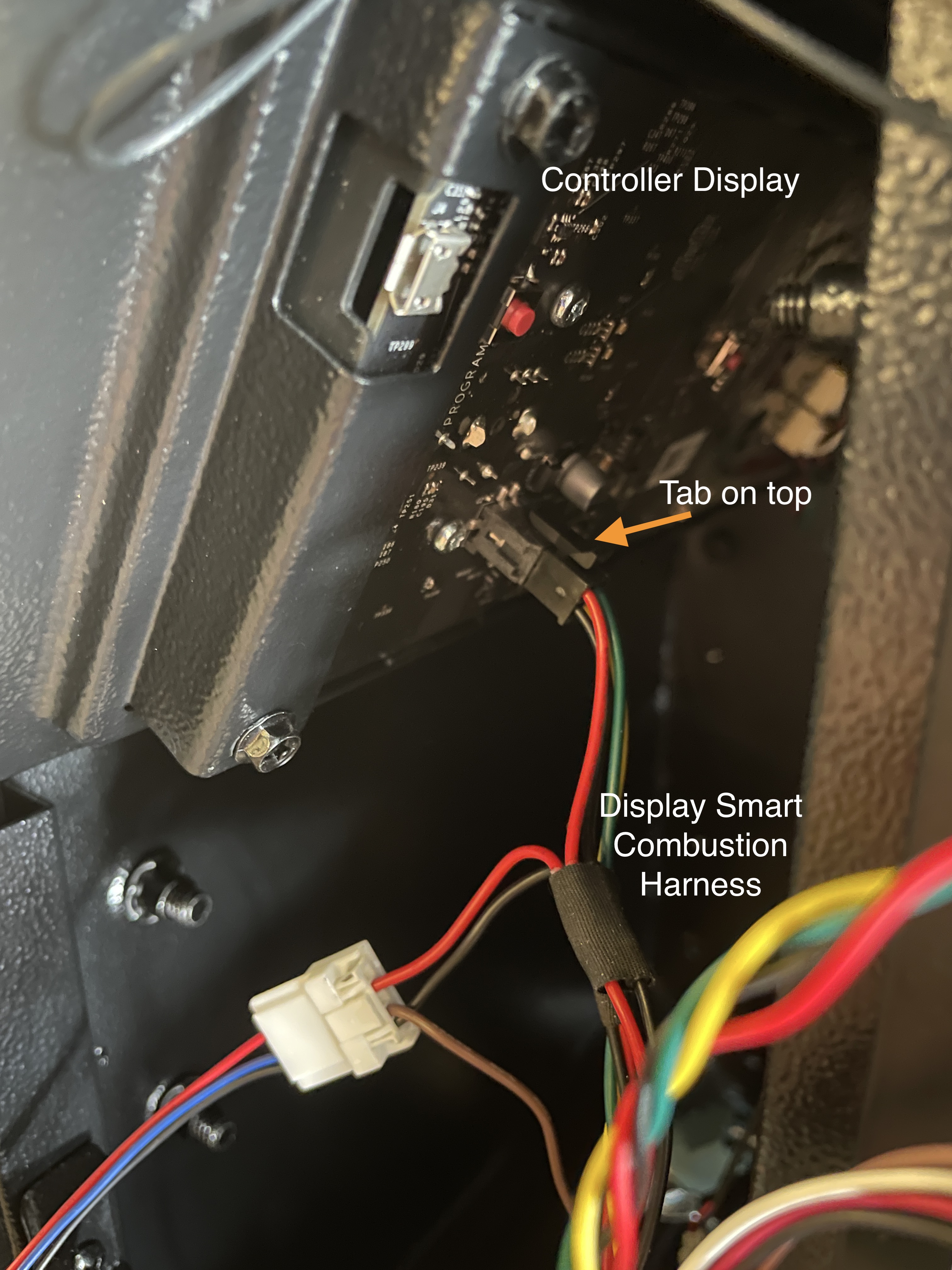
Step 6: Check the Display Smart Combustion Harness connection to the Controller Display. The tab should be on top. If incorrect, disconnect and reconnect correctly.
Step 7: Remove the Smart Combustion cover and make sure the Motherboard LED is illuminated.
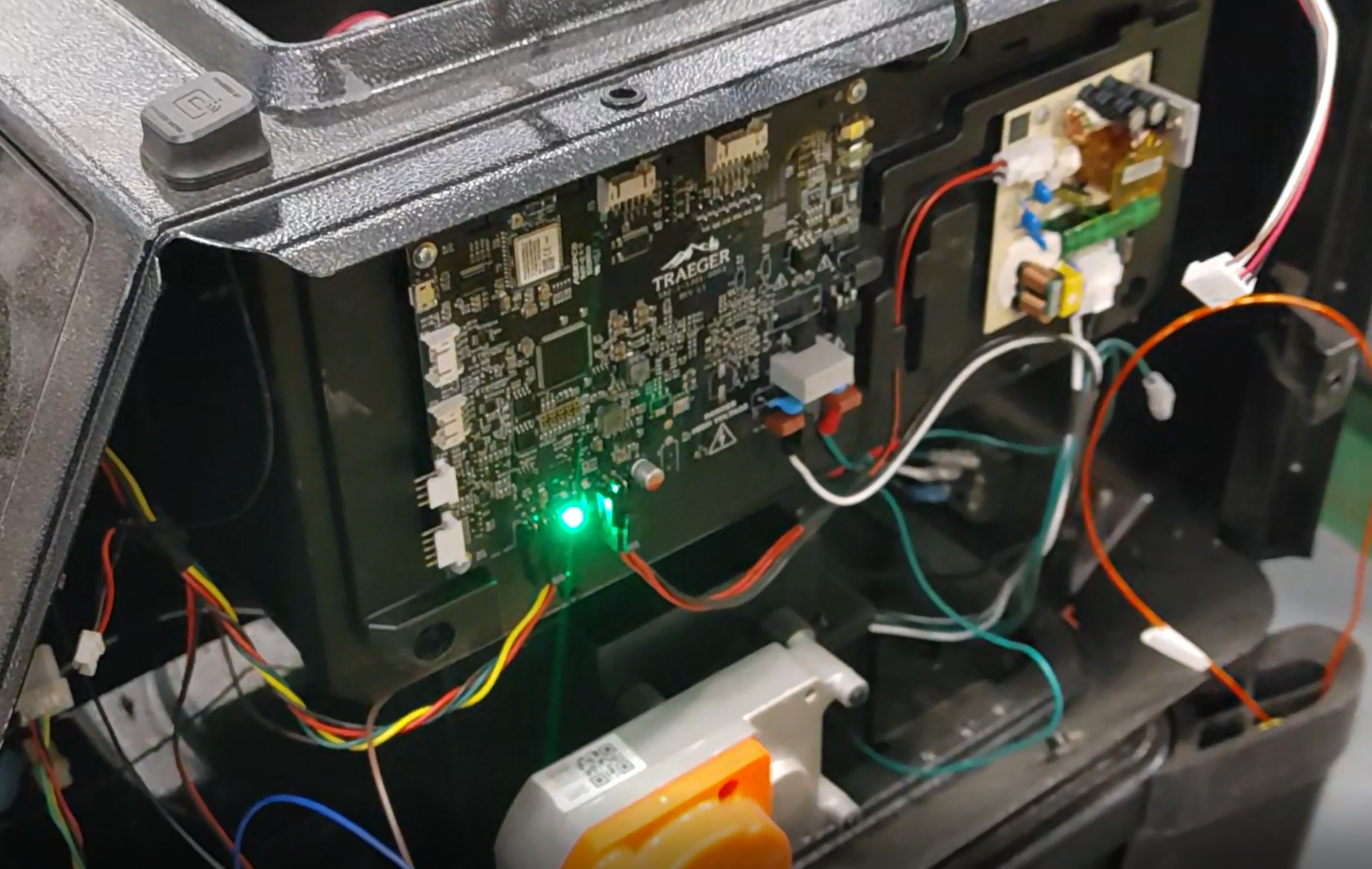
- LED not Lit: Continue diagnosing using steps in No Power - Touchscreen Grills.
- LED Lit (steady): contact Traeger's Customer Support.
- LED Lit (pulsing): Pulsing may indicate a power issue or firmware rebooting. This is occasionally accompanied with a faint, clicking sound coming from the motherboard. Contact Traeger's Customer Support.
Woodridge Series Grills
Step 1: Check the Power Source
- Check the connections to the grill and make sure the power cord is securely connected underneath the grill and into the outlet.
- Make sure the outlet is working by plugging another device into the outlet to see if that device works.
- If a GFCI outlet, make sure it didn't trip.
- If no power, check the breaker.
- If using an extension cord make sure it has a ground pin and meets the qualifications outlined under use of extension cords.
Step 2: Check the Firmware
- Find current app, firmware, and config versions here: Firmware Release Log.
- Update the firmware if the grill is not on the latest version.
If the grill shut off mid-cook while on the latest app version, please contact Traeger's Customer Support